
- Internet security
- Privacy
- Home network
Home internet use is no longer just about opening a few websites and moving on. Ad networks, tracking scripts, misleading downloads, and malicious domains operate in the background even when you are only reading the news or checking the weather.
This is not about paranoia, and it is not about turning everyone into a sysadmin. The goal is simpler: add a practical protection layer at DNS level that stops a significant amount of unwanted traffic before it even reaches your devices.
TL;DR
DNS-level filtering, such as NextDNS, can stop many advertising, tracking, phishing, and malicious requests before they meaningfully reach your devices. It does not replace antivirus, updates, strong passwords, or two-factor authentication, but it adds a practical protection layer for everyday home use. Start with the default settings on one device, then expand gradually with the help of logs and an allowlist.
What is the real problem?
Most people think about online protection only when a virus is already on the machine. By then, you are already late. A large part of today's unwanted traffic does not arrive as an obvious infected file. It comes in through ad networks, tracking domains, suspicious scripts, telemetry, phishing pages, fake update prompts, and a long line of third-party services you never intentionally visited.
That does not mean somebody in a dark room is personally watching your browser history. Usually the situation is much less cinematic and much more boring: mass-scale data collection, automated profiling, ad tracking, and opportunistic abuse. Still unpleasant. Still worth reducing.
Why is antivirus alone not enough?
- It often reacts late, after a connection or download has already happened.
- It protects one device at a time, not your entire household traffic.
- It consumes local resources, while plenty of junk traffic could be filtered earlier.
- It does not replace good browser habits, but it also does not solve tracking and noisy third-party traffic on its own.
I am not arguing against antivirus. Keep it. The point is that it should not be your only line of defense.
The short plain-language version: what is DNS?
When you type a website address into the browser, your device first needs to find out where that website is located on the internet. This lookup happens through DNS. In plain language: DNS is the phonebook that turns readable names into machine-usable network addresses.
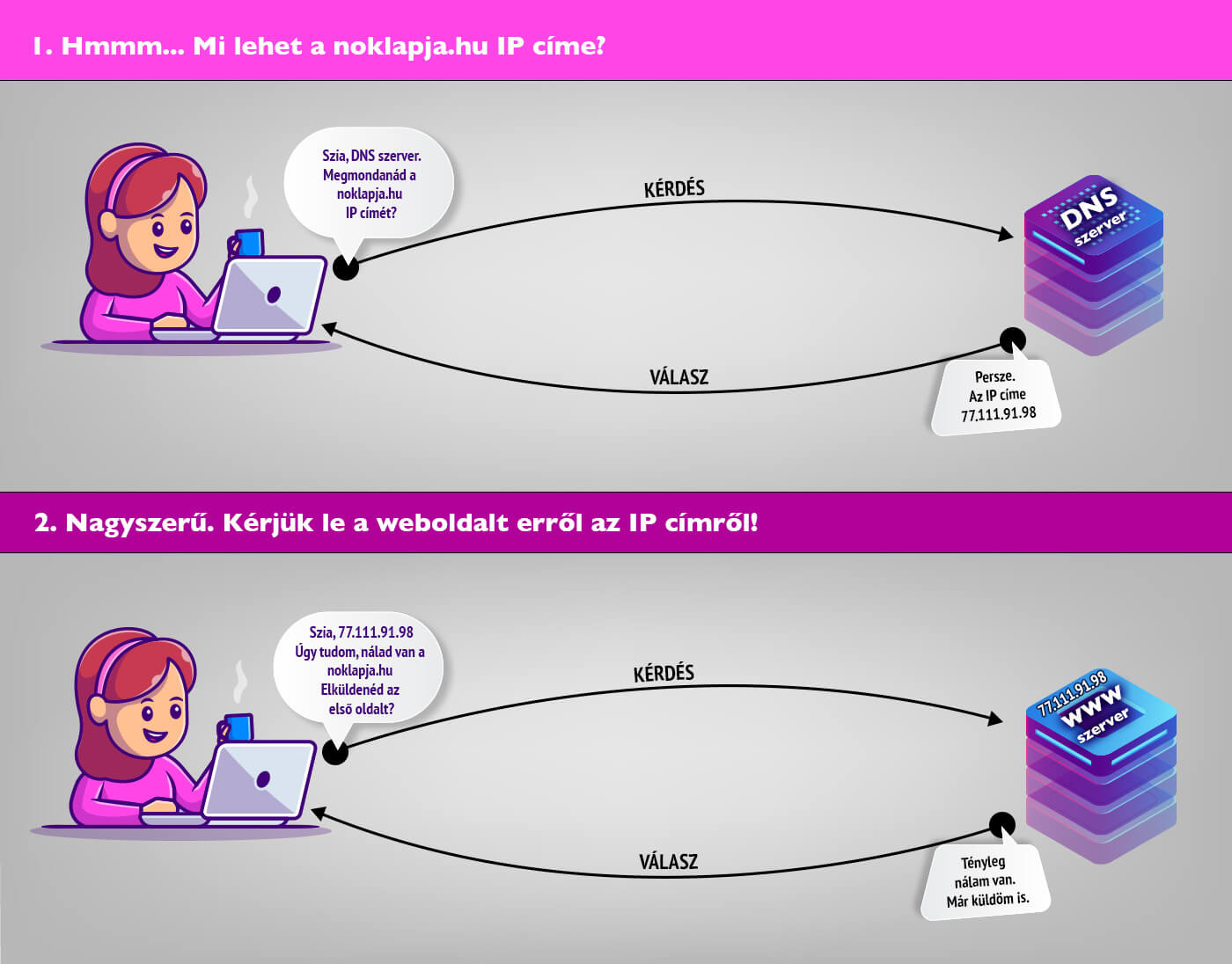
If the lookup succeeds, the browser continues and loads the requested content. If the lookup is blocked or redirected safely, the unwanted request never really gets where it wanted to go.
What happens if bad requests hit a wall early?
This is where DNS-level filtering becomes useful. Instead of trying to clean up everything after the fact on every device, you stop part of the problem at the lookup stage. Many ad, tracking, phishing, telemetry, and malicious domains can be blocked before the browser, phone, TV, or app meaningfully talks to them.
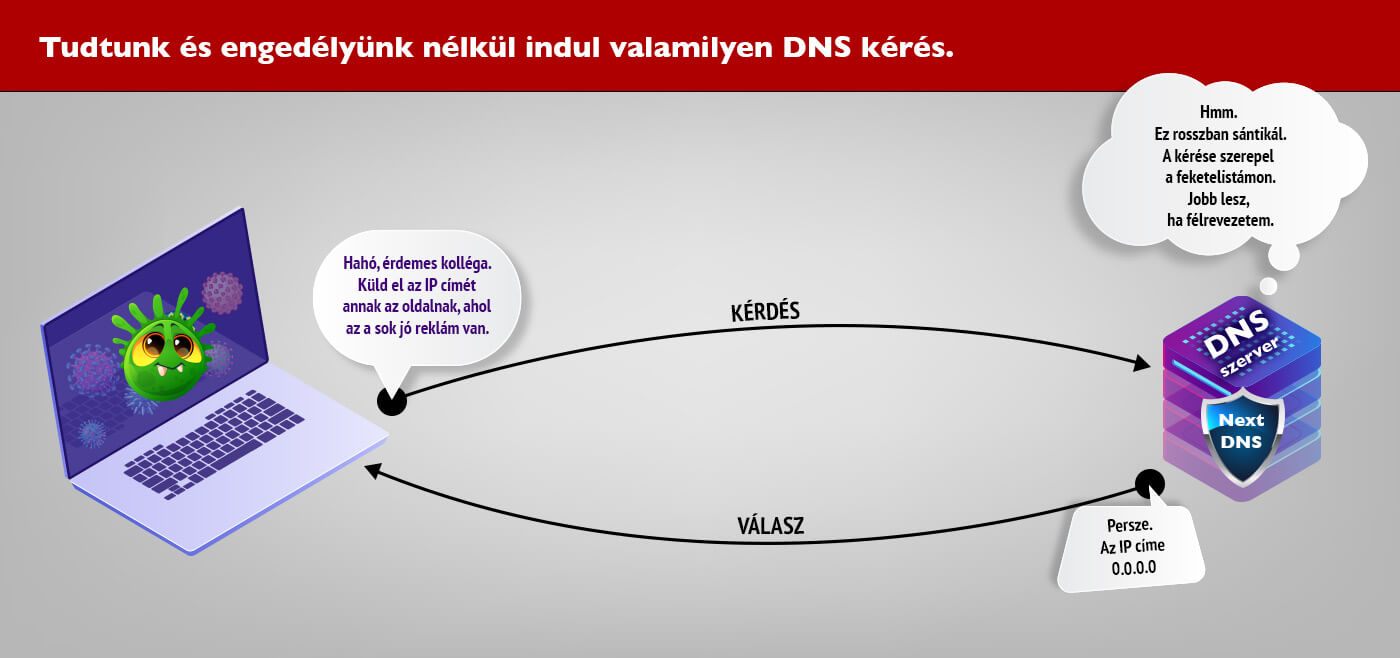
This does not make you invincible. It does make everyday browsing noticeably cleaner and safer.
Why use NextDNS as the practical example?
Because it is one of the rare tools in this area that remains genuinely usable for normal people. It works on individual devices, on a whole home network, or both. It gives you visibility through logs and analytics, and it lets you override decisions when a service breaks.
I am not writing this as sponsored content. I am using NextDNS here because it is a practical example, not because I enjoy making unpaid advertisements for network services on the internet.
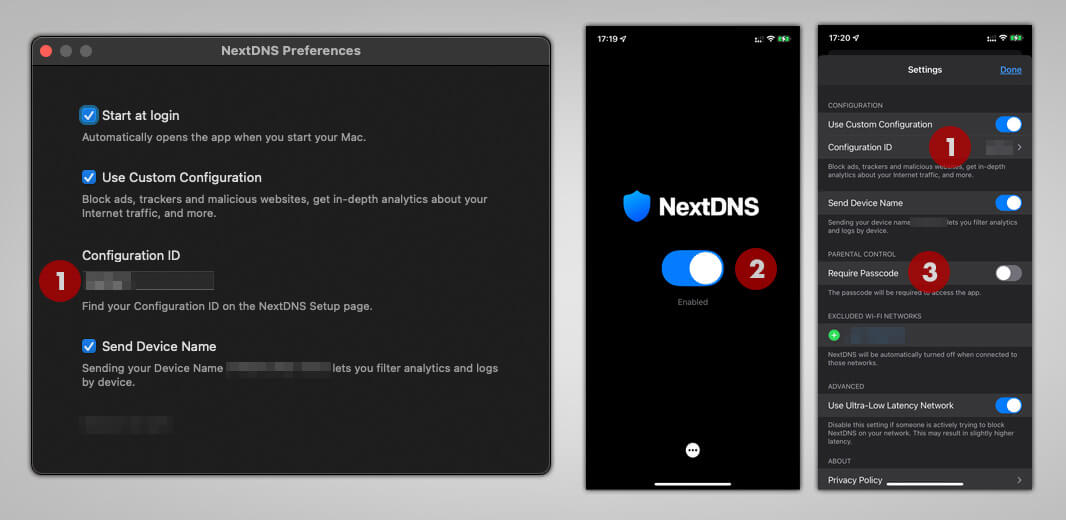
Important: interfaces change over time. The screenshots below illustrate the logic and the workflow, not an eternal pixel-perfect truth carved into stone.
How I would set it up without unnecessary ceremony
- Create an account and start with the default protection profile instead of turning on everything at once.
- Review the core areas: privacy, security, logs, and setup.
- Install it first on one device you use daily. Live with it for a day or two.
- If everything behaves well, extend it to the rest of your devices or to the router.
- If something useful stops working, use the allowlist instead of disabling protection entirely.
Groups and separate rules
One of the genuinely useful parts is that you can keep separate configurations. A relaxed profile for adults, a stricter one for children's devices, or a testing profile for the one machine on which you constantly install odd tools from obscure corners of the internet.

Device-by-device setup
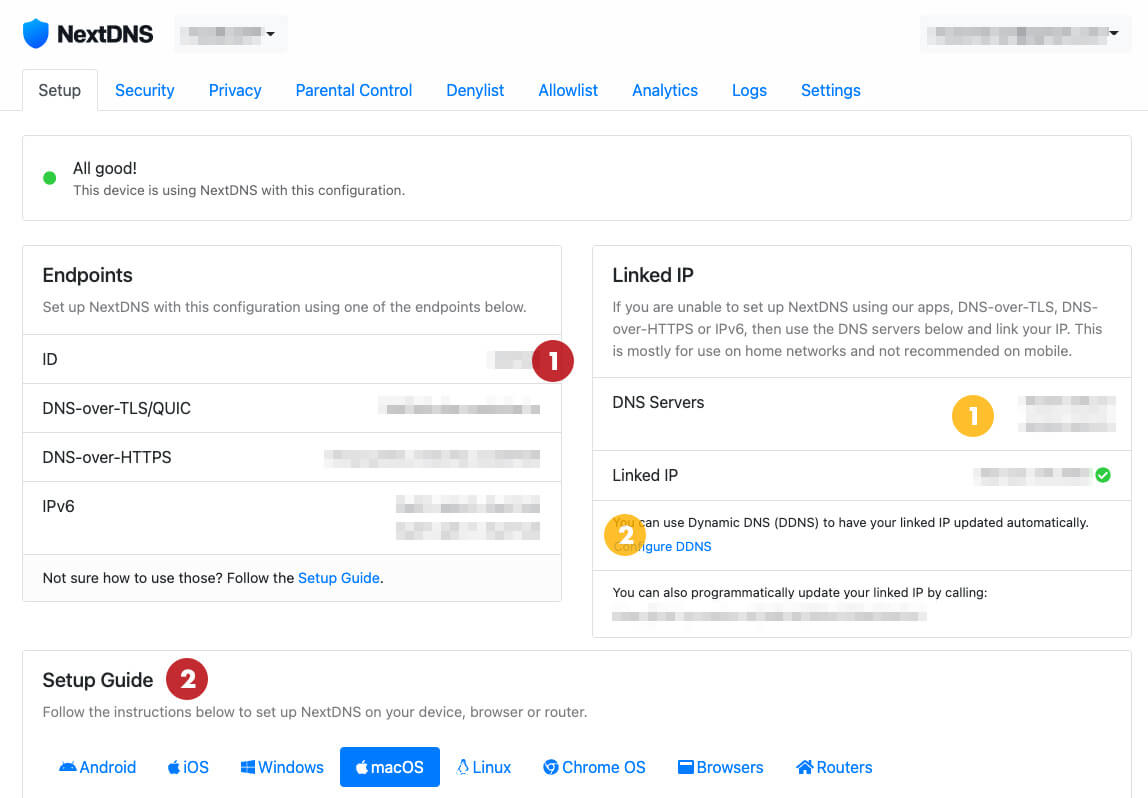
If you want the lowest-friction start, install the service on the devices that matter most: laptop, phone, tablet. The setup page gives you the route, and the apps usually do the heavy lifting once you approve the required network changes.
Protecting the full home network
If you want broader coverage, the router-level setup is stronger because it protects traffic for the entire household, not just a single phone or laptop. In practice this means pointing DNS traffic through your chosen configuration and, where needed, using DDNS so the service can reliably identify your connection.

If your ISP router is locked down and refuses sane DNS configuration, the per-device route is still perfectly valid. Less elegant, but still useful.
What not to do
- Do not enable every aggressive blocklist on day one just because it feels satisfying.
- Do not assume DNS filtering replaces updates, good passwords, two-factor authentication, or common sense.
- Do not throw away antivirus because one layer started doing its job better.
- Do not forget to check logs when a site or app suddenly starts acting strangely.
Short version
If your goal is not theoretical perfection but a sensible improvement in day-to-day online hygiene, DNS-level filtering is one of the highest-value low-effort steps you can take at home. Not magical. Not absolute. Just practical, effective, and far less intrusive than installing ten noisy “security” tools that all scream at once.
That, in my experience, is a trade worth making.